Check Warranty Status of Your Dell Laptop: Complete Guide to Verification, Troubleshooting, and Extended Coverage
The essence of productivity, business, and everyday digital life lies in having a dependable laptop. It is indeed common knowledge that laptops made by Dell come in very durable and functional models, but, just like most other electric devices, they, too, go through the wear of hardware, technical glitches, or even accidental damage with time. This article will demonstrate how one can check his/her Dell laptop’s warranty status, which would assist you to tell whether the time for repairs, replacements, or technical support remains in hand, or not.
In this extensive guide, we take you on a journey outlining everything required for verifying the warranty services present in your Dell laptop and troubleshooting common problems you can start to have. Further ahead, get some insight on different kinds of warranty policies and programs to choose from.
Why Checking Your Dell Laptop Warranty Status Matters
Dell laptop warranty determines what tech support or repair services one can receive free of cost. Getting to know the status of the warranty will help you:
Confirm if you are under warranty
Find official service centers
To keep unnecessary repair costs at bay
For extended warranties; and
To have official parts when needed
With battery drainage, overheating, screen damage, keyboard issues, hot motherboard, the active warranty benefits reduce your expected repair costs.
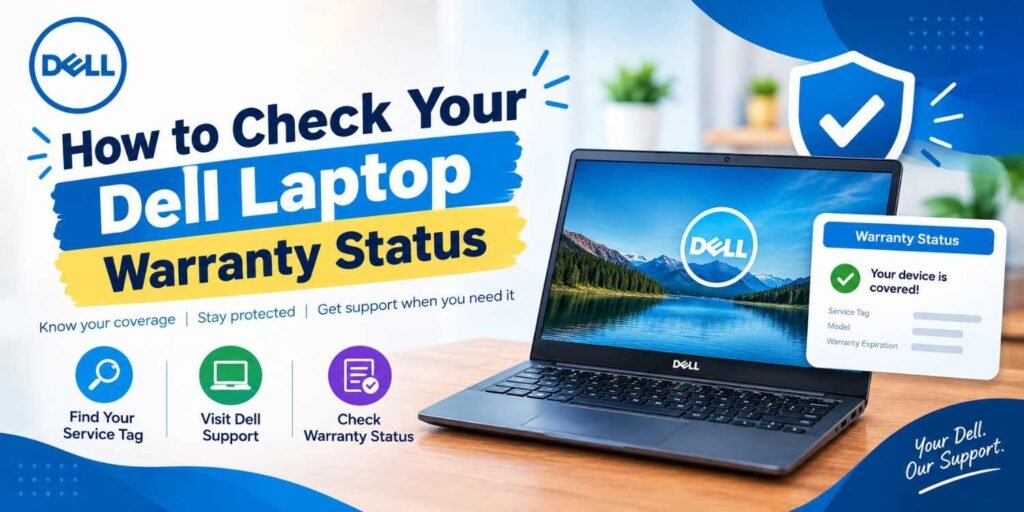
How to Check Your Dell Laptop Warranty Status
Dell has provided different options for quickly checking the status of warranties for your device. In all three methods, you will be asked to provide your Express Service Code, Service Tag, or detection tool for the system in question.
Method 1: Check Warranty Using the Dell Service Tag
The service tag is a 7-character unique code that is assigned to every single Dell computer device. It apparently serves to recognize the various configurations in the warranty.
Steps to Check Warranty with Service Tag
Locating the Service Tag on your laptop.
- Beneath the laptop
- Also BIOS settings
- Held under the System Information menu
- Found under Dell Support on your system
- Dell Support web page must get any necessary information.
- Enter your Service Tag in the two-year-lookup system box
- Click on Check Warranty Status.
The system will answer swiftly:
- Your warranty’s expiration date
- Coverage type
- Hardware support eligibility
- Options offered.
It is the most precise and fastest way to get warranty coverage checks done.
Method 2: Automatically Detect Your Dell Laptop
Dell provides a tool for detecting devices that automatically identifies your laptop.
Actions:
- Go to Dell Support.
- Click Detect PC.
- Let the website scan the system.
Dell has provided, through the process, also:
- Device model
- Serial number
- Warranty coverage
- Driver support
- Update recommendations
This method is convenient when you are unable to locate the Service Tag yourself.
Method 3: Check Warranty from BIOS
The service tag and hardware details are also held in the BIOS of a Dell laptop.
Steps
- Restart the laptop.
- Press F2 at boot.
- Click on System Information.
- The Service Tag will be somewhere in that list.
With the Service Tag, you can check the warranty status of your device on Dell’s support page.
Understanding Dell Laptop Warranty Types
Dell offers several warranty coverage levels, each designed to support different usage scenarios.
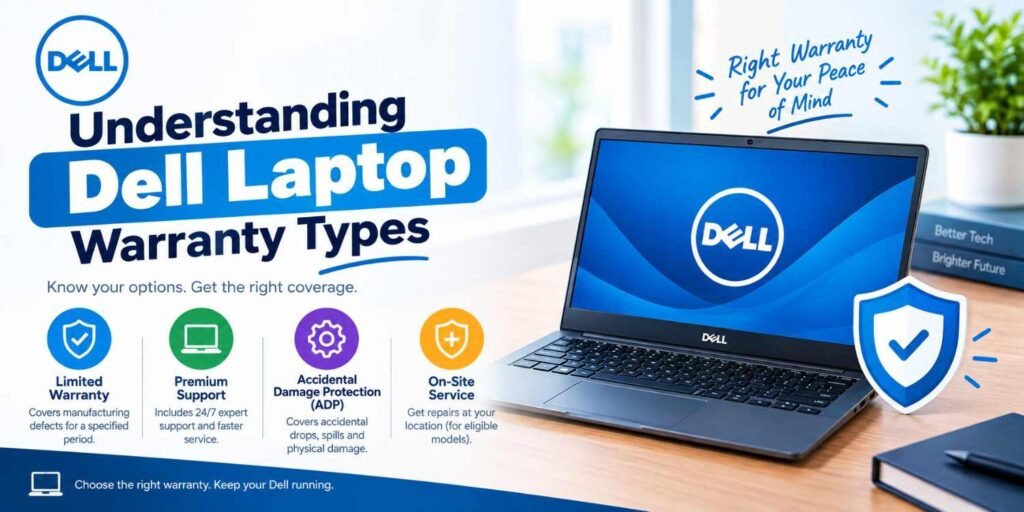
1. Basic Hardware Warranty
Many of Dell’s laptops typically come with the standard warranty.
The warranty typically includes:
- Manufacturing defects
- Hardware malfunctions
- Faulty components
- Internal hardware replacement
It generally does not cover accidental damages, such as spill or dropping.
2. Premium Support Warranty
The arrangement of support services in the stairs ensures the company taller service whenever a call is made.
This includes:
- Availability of technical support 24/7
- Troubleshooting macros problems
- Hardware reparation
- Remote diagnostics
- Priority service
A dream support program-professionals who will shed everything else smartly before they start working on data, installing extra memory, troubleshooting while in school, or getting credit for a promotional email that they should have heard from their boss twenty minutes ago.
3. Premium Support Plus
Premium Support Plus provides advanced protection, over and above what a standard warranty offers. Below is a list of its benefits:
- Accidental damage protection
- Software infrastructure support
- Automated issue tracking
- Computer optimizer
- Predictive failure notification on hardware
It is Dell’s most complete warranty solution.
4. Accidental Damage Service
If you do not want your laptop to meet the untimely death of an accident; this warrant plan has got all covered for you:
- Liquid Spills
- Voltage fluctuation
- Falling off
- Screen breaking
The service also plays a pivotal role for people who travel a lot or who work in demanding environments while using a laptop.
Common Dell Laptop Issues Covered Under Warranty

If we consider that a problem with the hardware for which the laptop is in warranty, Dell usually provides the repair or replacement for some hardware problems.
Battery Problems
If a battery has a full out failure or disagreement while charging, this means the battery is considered defective and warrantied for replacement.
Keyboard Malfunction
Dead keys or keys that stay down can be repaired under warranty, given that the issue was in manufacturing rather than from normal wear and tear.
Display Issues
Warranty coverage for:-
- Screen flickering
- Dead pixels
- Backlight not working
- Display going off
Motherboard Failure
Motherboard defects are very expensive to repair, but they are usually covered by the warranty for either repair or a new one.
Overheating and Cooling Problems
Dell covers the repair or replacement of the cooling systems if the computer is overheating because of fan failure or due to the cooling attributes not doing their job properly.
How to Contact Dell Support for Warranty Service
It is pretty easy to get help from Dell Support Centre if your warranty is still applicable and your laptop gets a fault.
Initiating a Support Query
- Go to the Dell Support center.
- Enter the Service Tag.
- From the list of issues, select the category related to your case.
- Verify whether it is a repair service or a technical support service.
Possibly, Dell may provide various types of support depending on the warranty type, such as:
- Remote troubleshooting
- Technician on site
- Mail-in repair
- Maybe the support would only be from a trusted service center.
How to Extend Your Dell Laptop Warranty
It is always advisable to make use of the extension of coverage when the time for which the warranty was issued; is about to expire.
The Advantages of Extended Warranty
- Safeguarding your hardware from those hard-to-tackle malfunctions
- Giving you priority in obtaining appropriate technical assistance for your Dell systems
- Decreasing your overall maintenance expenses in the long run
- Providing access to real Dell spare parts
The Process of Warranty Extension
- Engage in a visit to the warranty extension page of Dell.
- Kindly tap your Service Tag.
- Take a look at a range of warranties offered.
- Next, choose the durations of coverage according to the one desired by you.
Some extensions provide protection for one through three extra years.
Troubleshooting Your Dell Laptop Before Requesting Warranty Service
Perform basic troubleshooting before submitting a warranty claim to rule out simple issues.
Restart the Computer
Many types of problems can be resolved by simply restarting the computer.
Update Drivers
Out-of-date drivers can cause:
- Screen flickering
- Wi-Fi connecting problems
- Audio problems
Updating drivers by visiting the Dell support page can help you solve numerous problems.
Run Dell Diagnostics
Dell computers come with hardware diagnostics tools present as part of the system.
Procedure:
- Restart the laptop.
- After the Dell logo is shown, press F12.
- A diagnostic box will appear.
Diagnostics will scan the hardware of the system and pinpoint failures inside the computer.
Tips to Protect Your Dell Laptop Warranty
Ensure the warranty stays valid:
- Please avoid unauthorized repairs.
- Use only authentic accessories from Dell.
- Do not damage the Service Tag.
- Ensure proper charging practices.
- Give the device an opportunity to breathe.
Never commence any unauthorized hardware modifications, because that would deprive you of your warranty rights; therefore, the mentioned issues have to be taken care of at official service centers whenever they arise.
Final Thoughts

Keeping an eye on the warranty status of your Dell laptop is vital to safeguard your electrical treasure and guarantee your availing professional repair services. You can show the due diligence on your laptop, making your investment last by realizing what the various types of warranties are, debugging issues when they arise, and adding coverage as mandated.
Taking the default choice before the unexpected arises or when out of warranty ensuring continued good performance from your Dell laptop irrespective of the particular concern, be it tech support, hardware repair, or extended warranty coverage.